Connecting your Mailchimp Audience
When you connect GoodCRM to your Mailchimp account, we’ll bring acoss your current contacts and any new ones that sign-up. Plus you’ll see the campaigns they’ve received on their contact timeline too.
- To add the Mailchimp integration to your CRM, head to Tools & Settings > App Store.
- Select Mailchimp from the options and click Install.
Configuring your Mailchimp settings
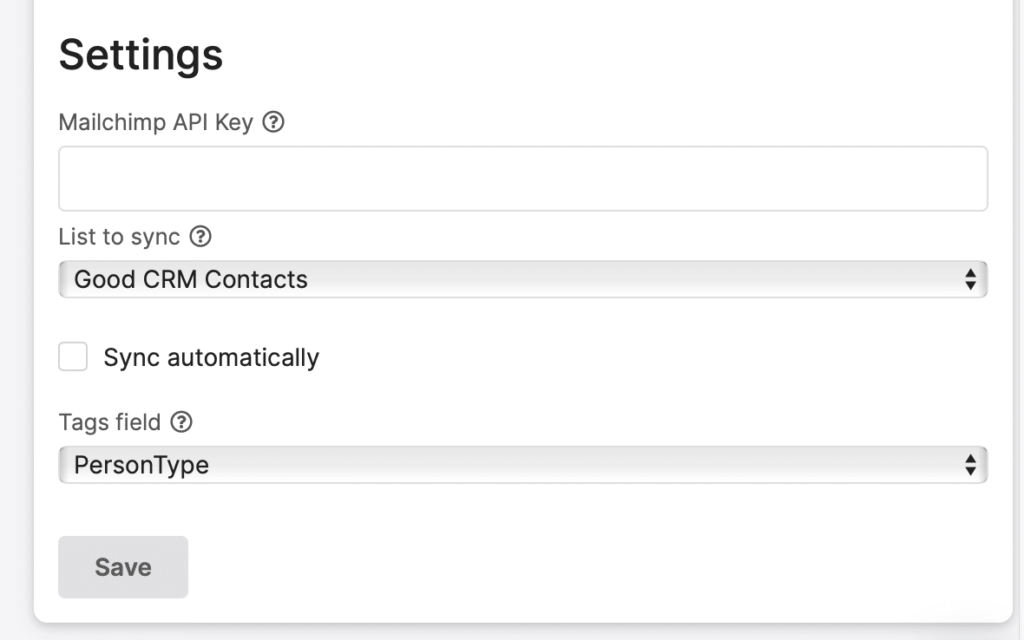
You can then use the settings page to connect to your Mailchimp account.
- Enter in your Mailchimp API Key. Here’s a link to help you find that!
- Choose the audience to connect with. Check the Sync automatically checkbox to add new contacts to GoodCRM as they subscribe to your list.
- Choose a Tag field to sync tags from Mailchimp onto your GoodCRM contacts. You can use an existing tag field like Person Type or create a new tag field – for example Mailchimp Tags.
- Save your settings.
You can only import one audience into GoodCRM. You may wish to consolidate multiple audiences into one, and use Mailchimp segments to separate contacts within your audience.