Connecting to Payment Providers
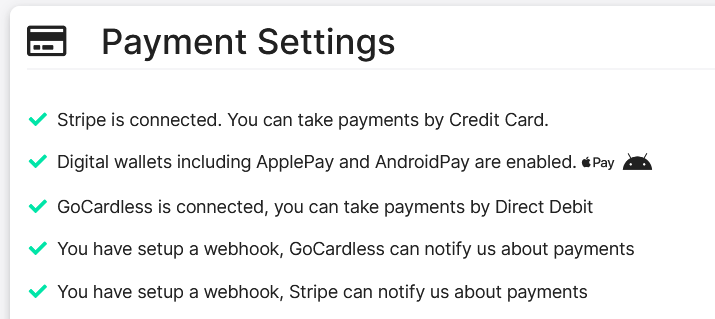
Head to Tools & Settings > Payment Settings.
From the Payment Settings page, you’ll need to connect to Stripe and GoCardless to enable card, digital wallet and Direct Debit support.
Connecting Go Cardless
An access token allows GoodCRM to read and write information to your GoCardless account.
Click on the Click here link in GoodCRM to open the GoCardless console.
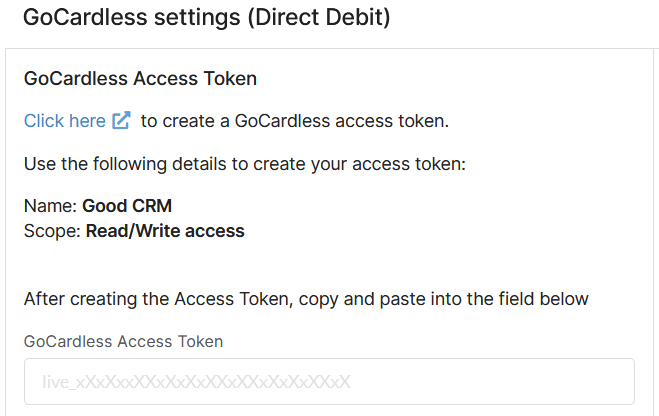
2. Create a GoCardless Access Token
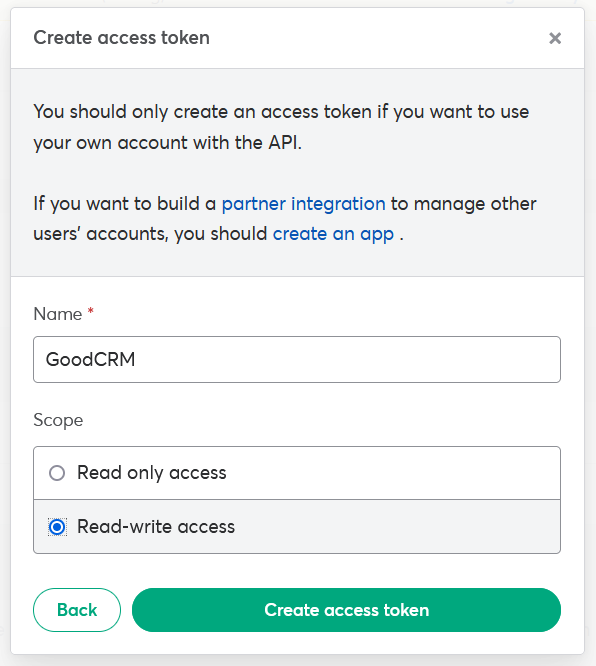
In the interface that opens, add a name for your access token, such as GoodCRM.
Set the Scope to Read-write access
Click on Create access token.
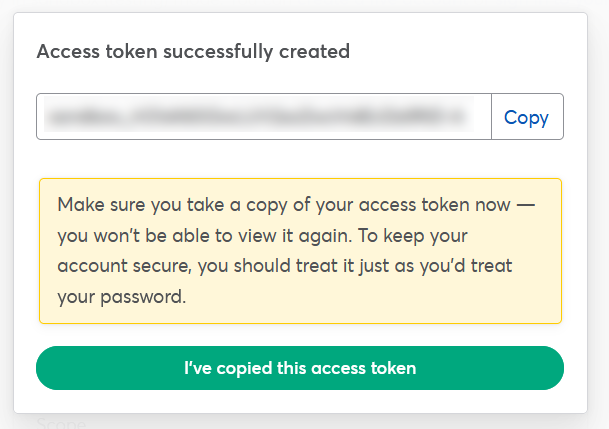
3. Copy the Access Token and paste into GoodCRM
Click Copy to copy the access token
4. Paste the access token in GoodCRM into the corresponding box
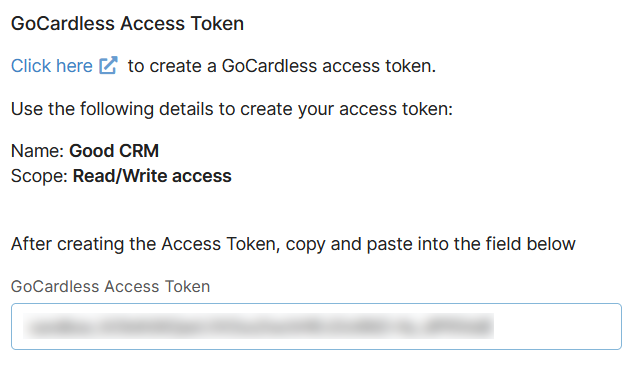
Remember to click Save when you’ve completed all steps to update your settings.
Create a GoCardless webhook
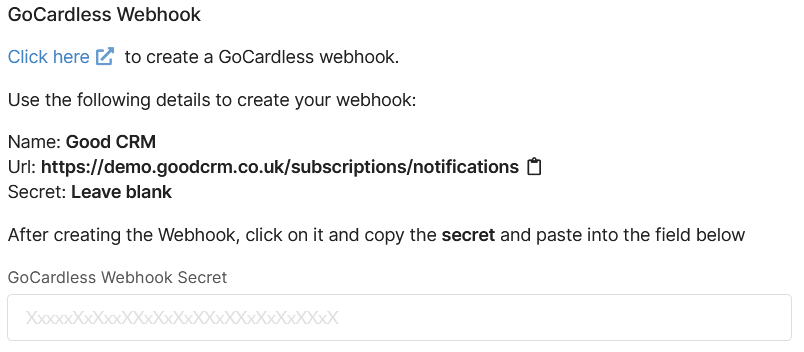
A webhook allows GoCardless to send us notifications about new payments.
1. Access the Web Hooks section of the GoCardless dashboard
In the Webhook panel, click on the Click Here link:
2. Create the web hook
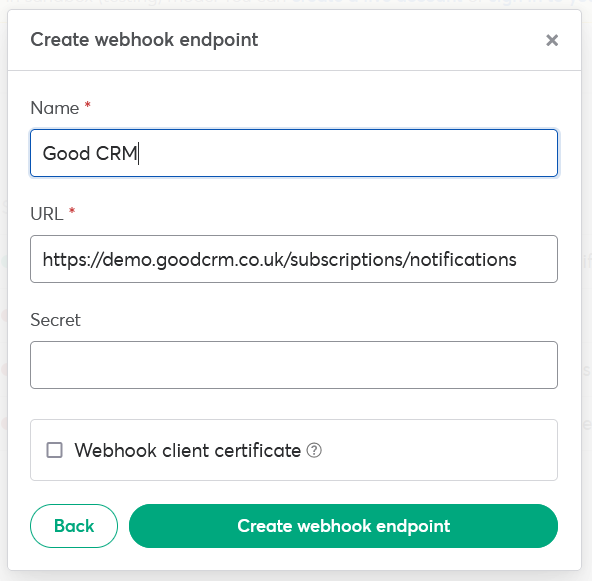
On the GoCardless dashboard, complete the pop-up box as follows, ensure you use the notifications link as it displays in your settings page, you can click the clipboard icon to copy it.
Leave the Secret blank and the Webhook client certificate unchecked.
Click Create webhook endpoint
A new web hook will now be listed in the GoCardless dashboard:

3. Copy the webhook secret
Click on the webhook to view the details:
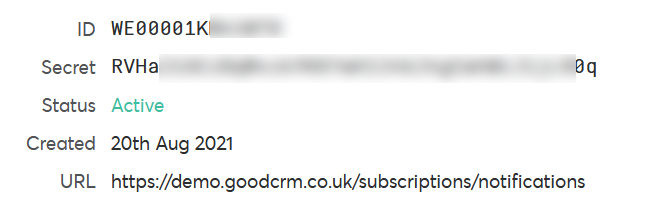
Copy the secret from the webhook
4. Paste the secret into GoodCRM
Now Paste the secret into the corresponding section in GoodCRM
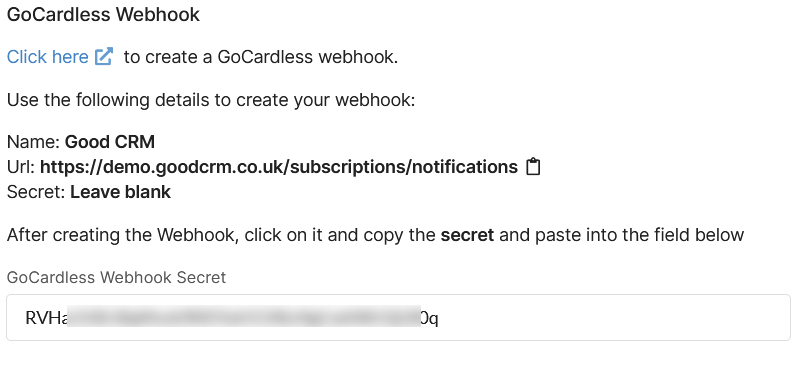
Remember to click Save when you’ve completed all steps to update your settings.
Connecting your Stripe account
Log into your Stripe dashboard before following these steps.
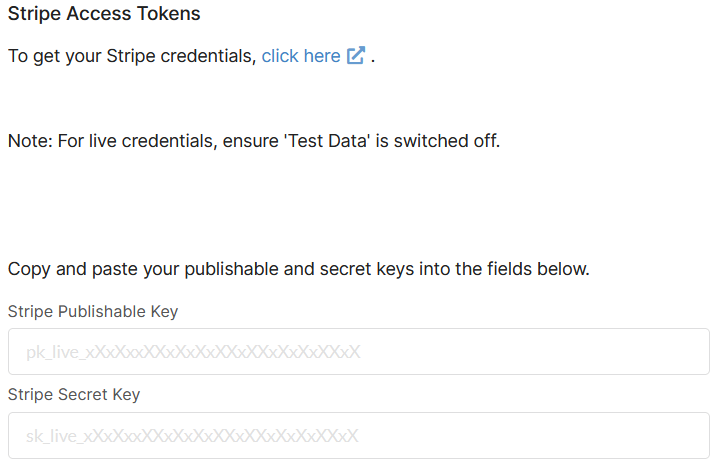
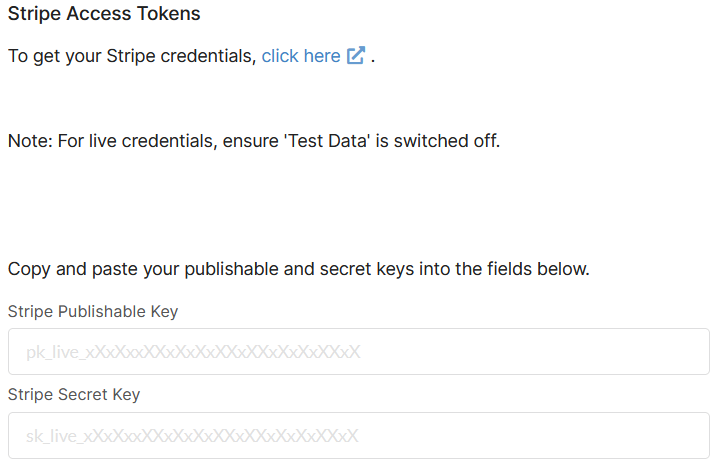
On the Stripe Access Token panel, click on the Click Here link to open the Stripe dashboard.
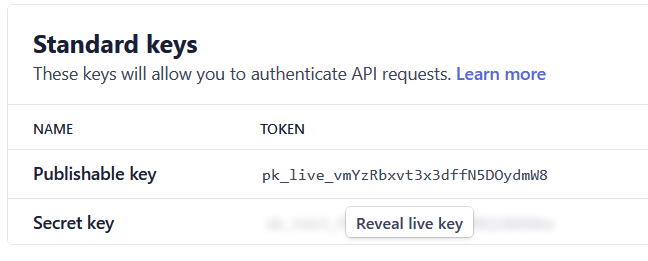
2. Copy your Publishable Key from Stripe
3. Paste the Publishable Key into GoodCRM
4. In Stripe under Secret key click Reveal live key and Copy this key
5. Paste the Secret Key into the corresponding box in GoodCRM.
Create a Stripe Webhook
A webhook allows Stripe to send us notifications about new payments.
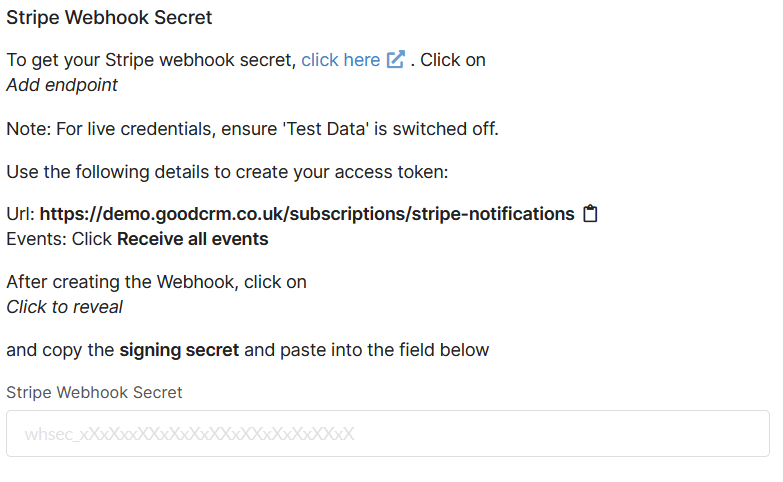
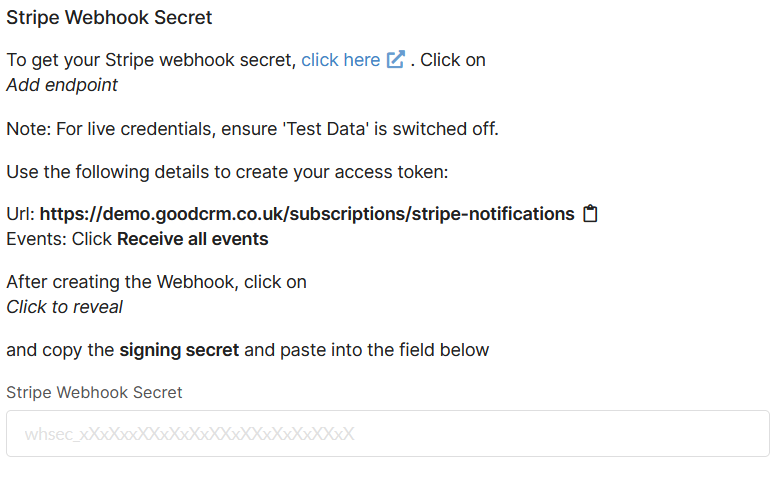
1. In the Stripe Webhook Secret Panel in GoodCRM click the Click here link
2. Click Add endpoint in the Stripe Dashboard
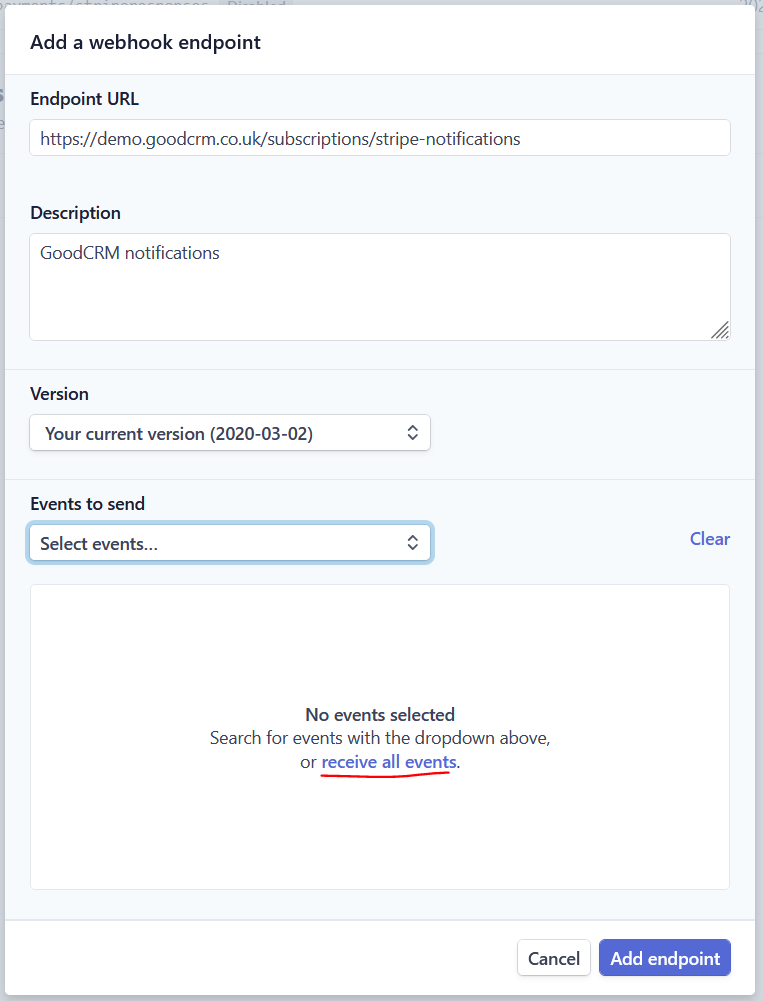
3. Complete the Endpoint details in Stripe
Fill in the details as specified on the GoodCRM settings page (you can optionally add a description for your reference) – then click the receive all events link. Finally click on Add endpoint.
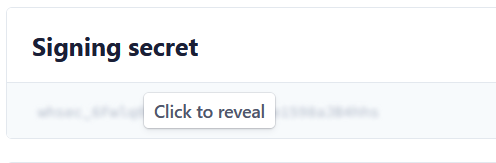
4. Copy the secret in Stripe
On the next page, click Click to reveal on the Signing secret and copy it.
5. Paste the secret into GoodCRM
Paste the secret into the Stripe Webhook Secret field on your Settings page in GoodCRM.
Click Save to save your payment settings. You should then see all items marked as completed on your Payment Settings page: